What is ERP Integration?
Connecting accounts payable systems with enterprise resource planning software for seamless data flow.
Quick Definition
ERP integration connects accounts payable systems with enterprise resource planning software for seamless data flow between invoice processing tools and your financial system of record.
- Eliminates duplicate data entry between systems
- Keeps ERP as the single source of truth
- Enables real-time sync of invoices and payments
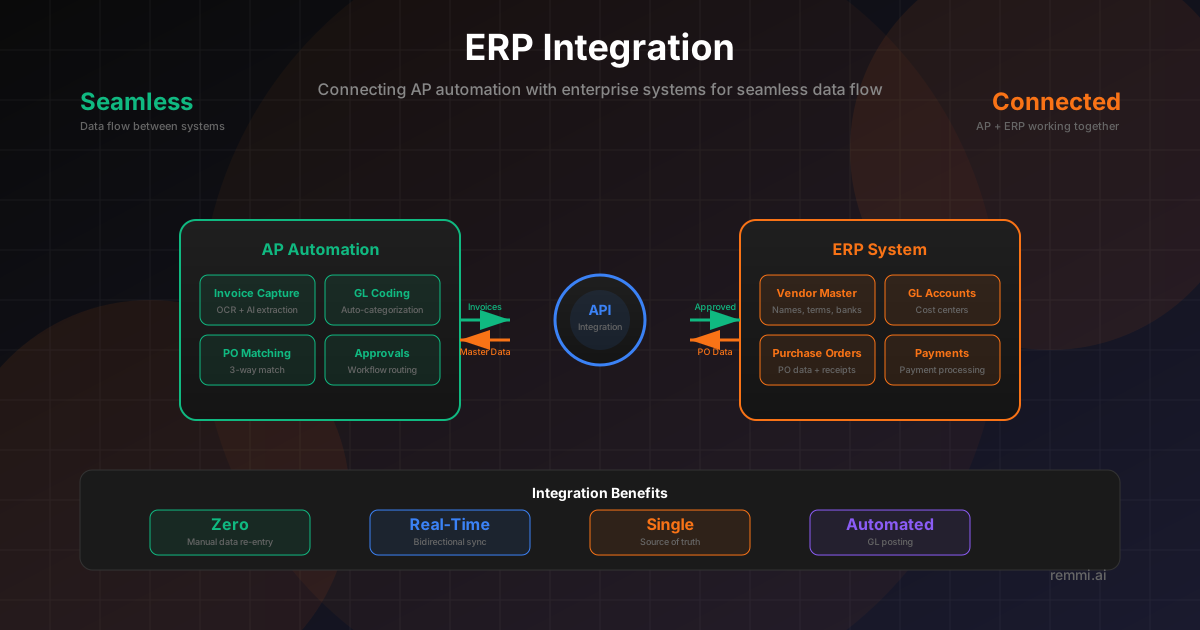
Understanding ERP Integration
ERP integration is the technical process of connecting external applications with your enterprise resource planning system. For accounts payable teams, this typically means linking AP automation tools, invoice management software, or payment platforms to your core ERP—ensuring data flows seamlessly between systems without manual re-entry.
A well-designed ERP integration enables:
- Two-way data sync between your AP tool and ERP
- Real-time updates for invoices, payments, and vendor data
- Automated posting of approved invoices to the general ledger
- Master data consistency across all connected systems
- Reduced errors from eliminating manual data entry
Modern AP automation platforms offer pre-built integrations for major ERPs like SAP, Oracle, NetSuite, and Microsoft Dynamics, making it easier than ever to connect your invoice processing workflow to your financial system of record.
Integration Methods
API Integration
Real-time data sync via REST or SOAP APIs:
- - Real-time data exchange
- - Bidirectional sync
- - Event-driven updates
- - Modern and scalable
File-Based Transfer
Batch imports and exports via files:
- - CSV, XML, or EDI formats
- - Scheduled batch processing
- - Works with legacy systems
- - Simple to implement
Direct Database
Direct connection to ERP database:
- - Low latency access
- - Full data visibility
- - Requires DB expertise
- - Security considerations
What Data Flows Between Systems?
From ERP to AP Tool
- •Vendor Master - Names, addresses, payment terms, bank details
- •Chart of Accounts - GL codes, cost centers, departments
- •Purchase Orders - PO numbers, line items, amounts
- •Goods Receipts - Receipt confirmations for matching
From AP Tool to ERP
- •Approved Invoices - With full GL coding and approvals
- •Matching Results - PO and receipt matching status
- •Payment Requests - Invoices ready for payment
- •Accrual Data - For month-end close
How ERP Integration Works
Initial Setup & Mapping
Configure API connections, map data fields between systems, and set up authentication credentials.
Master Data Sync
Pull vendor records, GL codes, cost centers, and PO data from ERP to the AP automation tool.
Invoice Processing
AP tool captures invoices, extracts data, applies coding using synced master data, and routes for approval.
Validation & Matching
System validates against PO data from ERP, performs 2-way or 3-way matching, flags exceptions.
Export to ERP
Approved invoices sync back to ERP with complete coding, ready for payment batch and GL posting.
Payment & Status Sync
Payment status flows back from ERP to AP tool, closing the loop and updating invoice records.
Benefits of ERP Integration
Manual data re-entry required
Sync between all systems
Source of truth maintained
When AP automation integrates seamlessly with your ERP, you eliminate the data silos and manual processes that slow down invoice processing. Your ERP remains the authoritative system while your AP tool handles the heavy lifting of capture, coding, and approval workflows.
ERP Integration Best Practices
Choose Pre-Built Connectors
Select AP automation tools with native integrations for your ERP. Pre-built connectors are faster to deploy and easier to maintain than custom integrations.
Enable Real-Time Sync
Configure real-time or near-real-time sync for master data changes so invoice processing always uses current vendor and GL information.
Plan for Security
Implement proper authentication (OAuth, API keys), encrypt data in transit, and follow your organization's security policies for system integrations.
Map Data Carefully
Take time to properly map data fields between systems. Mismatched fields cause validation errors and processing delays downstream.
Monitor Integration Health
Set up alerts for sync failures, data validation errors, and performance issues. Proactive monitoring prevents processing bottlenecks.
Common ERP Integration Challenges
- ×Complex API configurations — Different ERPs have different API structures and authentication requirements
- ×Version compatibility — Custom integrations may break with ERP upgrades and patches
- ×Data mapping complexity — Field structures vary between systems and require careful translation
- ×Performance at scale — High invoice volumes can strain real-time sync performance
Common ERP Integration Points
| ERP System | Integration Method | Key Considerations |
|---|---|---|
| SAP S/4HANA | OData APIs, IDocs, BAPIs | Complex but powerful; requires SAP expertise |
| Oracle Cloud | REST APIs, FBDI files | Modern cloud APIs; batch import options |
| NetSuite | SuiteTalk, REST APIs, CSV imports | Well-documented; strong third-party ecosystem |
| Dynamics 365 | OData, Power Platform, Data Management | Microsoft ecosystem integration; Power Automate |
| Sage Intacct | Web Services API, CSV imports | Clean API design; marketplace integrations |