Invoice Imaging Best Practices: Quality Standards for Accurate Data Extraction
The quality of your invoice images directly determines OCR accuracy. Poor scanning practices can undermine even the most sophisticated AI extraction systems, while optimized imaging workflows enable near-perfect data capture with minimal manual intervention.
Ryan Shugars
Director of Product
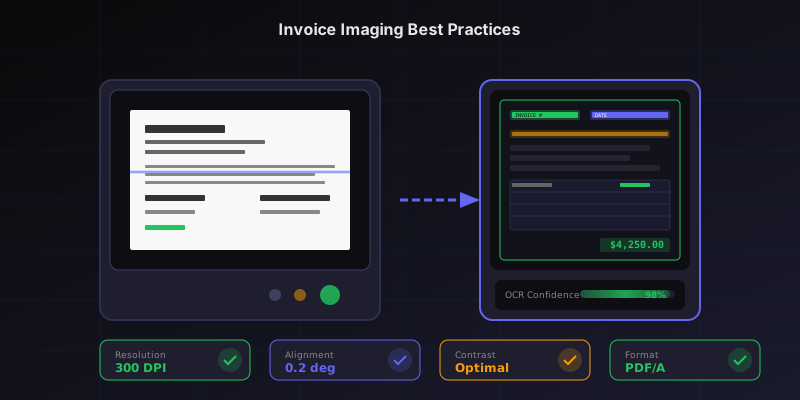
Every AP automation initiative begins with a single critical step: converting paper invoices into digital images that machines can read. Yet many organizations treat scanning as an afterthought, investing heavily in AI-powered OCR systems while feeding them substandard images that guarantee extraction failures.
According to AIIM research, poor image quality causes up to 40% of OCR errorsin document processing workflows. These errors cascade through the entire AP process, requiring manual corrections, delaying payments, and eroding the efficiency gains that automation promises. The solution begins not with better algorithms but with better images.
This guide establishes the imaging standards that maximize data extraction accuracy. Whether you operate a centralized scanning operation, rely on distributed capture across locations, or receive invoices through multiple channels, these best practices ensure your OCR system has the quality input it needs to deliver quality output.
The Image Quality Imperative
OCR technology has advanced remarkably, with modern AI systems capable of reading challenging documents that would have defeated earlier solutions. Yet even the most sophisticated algorithms face fundamental physical limitations. When text characters blur into each other, when backgrounds obscure foregrounds, when resolution drops below legibility thresholds, no amount of artificial intelligence can reconstruct information that simply is not present in the image.
Image Quality Impact on OCR Accuracy
300+ DPI, clean backgrounds, proper alignment achieve 98-99% character recognition accuracy with minimal corrections needed.
200-300 DPI with minor issues achieve 90-95% accuracy. Expect 5-10% of invoices requiring field corrections.
Under 200 DPI, skewed, or noisy images achieve 70-85% accuracy. Manual intervention required for most invoices.
Severely degraded images from multi-generation copies or extreme compression may require complete manual entry.
The relationship between image quality and OCR accuracy is not linear. A small improvement in image quality often yields disproportionate gains in extraction accuracy. Moving from 150 DPI to 300 DPI might double your straight-through processing rate, while the incremental cost of higher-resolution scanning is negligible.
Resolution Standards: The Foundation of Accurate Capture
Resolution, measured in dots per inch (DPI), determines how much detail your scanner captures. Higher resolution means more pixels representing each character, giving OCR algorithms more information to work with when distinguishing between similar characters like O and 0, 1 and l, or 5 and S.
The industry standard for invoice scanning is 300 DPI, which provides sufficient detail for reliable character recognition while keeping file sizes manageable. This resolution captures approximately 90,000 pixels per square inch, enough to clearly render even small text like terms and conditions or footnotes.

Higher resolution provides more detail for OCR engines to accurately distinguish characters
Recommended Resolution Settings
Standard Invoices
Typical printed or laser documents
300 DPI
Fine Print Documents
Small text, detailed tables, contracts
400 DPI
Archival Purposes
Long-term retention with zoom capability
600 DPI
Color Modes and When to Use Them
Scanning mode selection balances accuracy against file size and processing speed. While full-color scanning captures the most information, it is not always necessary or optimal for invoice processing.
Bitonal (Black and White)
Bitonal scanning converts everything to pure black or pure white, producing the smallest file sizes and fastest processing. For high-contrast printed documents with black text on white paper, bitonal scanning often provides excellent OCR results. However, it struggles with colored text, shaded backgrounds, or low-contrast originals.
Grayscale
Grayscale scanning captures 256 shades of gray, preserving more tonal information than bitonal while keeping file sizes reasonable. This mode handles low-contrast documents better and captures handwritten annotations. Grayscale at 300 DPI represents the optimal balance for most invoice processing workflows.
Full Color
Color scanning captures complete RGB information, essential when invoices contain color-coded elements, logos for vendor identification, or colored highlighting. File sizes increase significantly, but modern storage makes this less concerning than in previous decades.
The Case for Color Scanning
While grayscale handles most invoices well, consider defaulting to color for several reasons: vendor logos often contain color-based identifiers that aid matching, colored stamps and annotations indicate approval status, and declining storage costs make the file size argument less compelling. The marginal cost of color scanning is minimal compared to the potential loss of useful information.
Critical Quality Factors Beyond Resolution
Resolution establishes the foundation, but several other factors determine whether your images enable accurate extraction or frustrate your OCR system.
Alignment and Skew
Even slight document rotation challenges OCR accuracy. When text lines deviate from horizontal, character recognition becomes less reliable. Most modern scanners include automatic deskewing, but verification remains important for quality control.
Acceptable skew: Less than 2 degrees from horizontal. Beyond this threshold, extraction accuracy degrades noticeably. Configure scanners for automatic deskewing when possible, and train operators to align documents properly before scanning.
Brightness and Contrast
Optimal scanning captures the full dynamic range between the darkest and lightest elements. Underexposed scans produce muddy images where text merges with backgrounds. Overexposed scans bleach out thin text strokes, breaking character shapes.
- Brightness: Center setting works for most documents; adjust only for unusually dark or light originals
- Contrast: Slight increase (+10-15%) often improves text-background separation without artifacts
- Automatic settings: Modern scanners offer adaptive brightness that adjusts per-page; enable when available
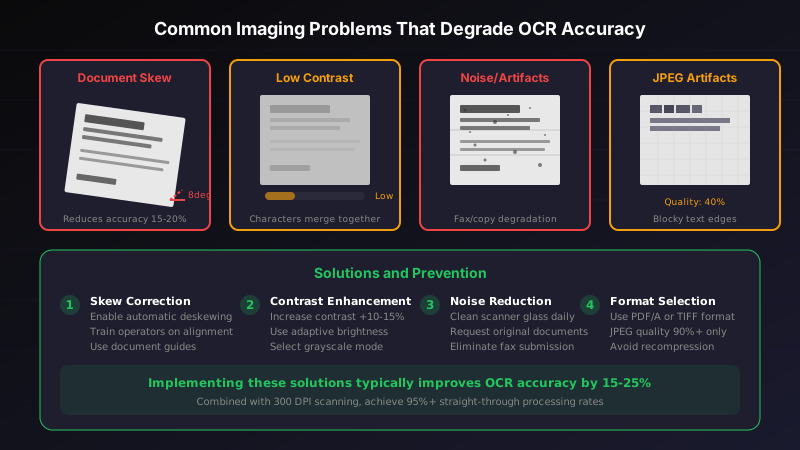
Common imaging problems that degrade OCR accuracy and their visual impact on text clarity
Background Noise and Artifacts
Paper texture, scanner glass contamination, and copy machine artifacts introduce noise that OCR systems must filter. While AI-powered pre-processing handles reasonable noise levels, excessive artifacts overwhelm these corrections.
Common Noise Sources and Prevention
Scanner Glass Contamination
Dust, fingerprints, and debris on the glass appear as spots or streaks on every scan.
Prevention: Clean glass daily with appropriate solution
Multi-Generation Copies
Each photocopy generation degrades quality exponentially; third-generation copies often unusable.
Prevention: Request original documents or electronic submission
Fax Transmission Artifacts
Fax protocols compress aggressively, introducing characteristic horizontal line noise.
Prevention: Transition vendors to email or portal submission
JPEG Compression Artifacts
Heavy JPEG compression creates blocky artifacts around text, particularly damaging to thin strokes.
Prevention: Use PDF or TIFF formats; minimum JPEG quality 85%
File Format Selection
The file format you choose affects both image quality and system compatibility. Each format offers different trade-offs between compression, quality preservation, and universal support.
PDF remains the preferred format for invoice imaging, offering several advantages: universal compatibility, multi-page document support, embedded metadata capability, and the option for searchable text layers. When generating PDFs from scans, use PDF/A format for long-term archival compliance.
Format Recommendations
- PDF/A: Best for archival; ensures long-term readability with embedded fonts
- TIFF: Lossless compression preserves full quality; larger files but zero degradation
- PNG: Lossless compression with smaller files than TIFF; excellent for single-page documents
- JPEG: Acceptable at 90%+ quality settings; avoid for documents requiring long-term retention
Scanner Selection and Configuration
Not all scanners are created equal. Document scanners designed for business use offer capabilities that consumer-grade devices lack: faster throughput, automatic document feeders, duplex scanning, and consistent quality across high volumes.
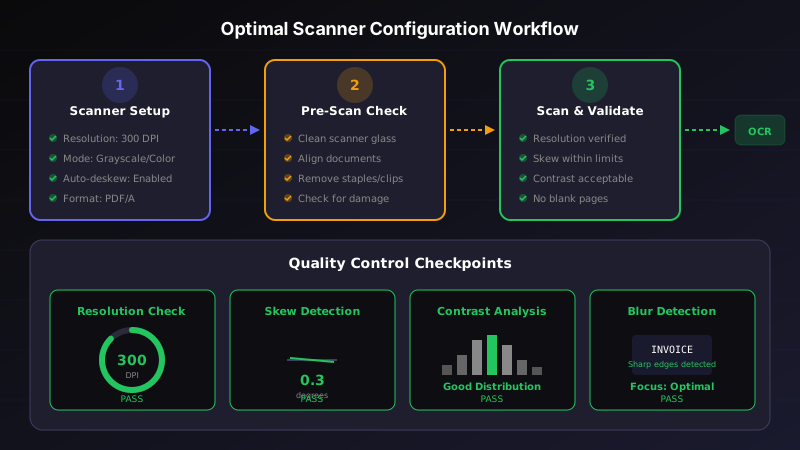
Establishing standardized scanner configurations ensures consistent image quality across your organization
Essential Scanner Features for AP Operations
50+ sheet capacity handles batch scanning efficiently; essential for any volume operation.
Automatic two-sided scanning captures reverse-printed terms and remittance info.
Software correction for slightly rotated pages maintains OCR accuracy.
Automatically removes blank separator sheets, reducing manual cleanup.
Mobile and Distributed Capture Considerations
Increasingly, invoices are captured outside traditional mailroom operations. Field personnel photograph receipts, remote employees scan from home offices, and vendors submit images through mobile apps. Each scenario introduces quality variables that require specific guidance.
Smartphone Capture Best Practices
Modern smartphones produce excellent images when used correctly, often surpassing budget desktop scanners in quality. However, poor technique easily undermines this capability:
- Lighting: Ensure even, diffuse lighting without shadows or glare
- Angle: Position camera directly perpendicular to document surface
- Stability: Hold steady or use a document stand to prevent blur
- Fill frame: Document should occupy most of the image area
- Dedicated apps: Use document scanning apps that apply perspective correction and enhancement
Recommended Mobile Scanning Apps
Purpose-built document scanning apps dramatically improve mobile capture quality. Features like automatic edge detection, perspective correction, and image enhancement transform smartphone photos into scanner-quality images. Apps like Microsoft Lens, Adobe Scan, and the native document scanning in iOS and Android provide these capabilities free of charge. Require their use for any mobile invoice submission workflows.
Quality Control and Monitoring
Establishing quality standards means little without ongoing verification. Implement systematic quality control that catches problems before they propagate through your AP system.
Automated Quality Checks
Modern document capture systems can automatically evaluate image quality and reject substandard submissions. Configure your system to check:
- Resolution verification: Reject images below minimum DPI threshold
- Skew detection: Flag severely rotated documents for re-scanning
- Contrast analysis: Identify low-contrast images that may cause extraction failures
- Blur detection: Catch motion blur and focus issues before processing
Ongoing Monitoring
Track quality metrics over time to identify degrading equipment or training gaps:
Key Quality Metrics to Monitor
Target rejection rate for quality-related failures
Target first-pass OCR acceptance rate
Target manual correction rate for extracted fields
Recommended quality report review frequency
The Vendor Education Opportunity
The highest-quality scanning operation means little if vendors submit unreadable documents. Proactively educating vendors on submission standards reduces exceptions and improves the entire invoice lifecycle.
Consider implementing vendor portal requirements that enforce quality standards: minimum resolution, accepted file formats, rejection of multi-generation copies. Provide clear submission guidelines and reject non-compliant invoices with specific feedback enabling correction.
The Path Forward
Invoice imaging quality is not glamorous, but it is fundamental. Organizations that treat scanning as a commodity function perpetually fight extraction failures and manual corrections. Those that invest in imaging excellence unlock the full potential of AI-powered automation.
The recommendations in this guide require modest investment: proper scanner configuration, operator training, quality monitoring, and vendor education. The returns are substantial: higher straight-through processing rates, fewer exceptions, faster cycle times, and AP teams freed from data correction to focus on strategic work.
Begin with an audit of your current imaging quality. Measure resolution, skew, and contrast across a sample of recent invoices. Identify the gaps between current state and recommended standards. Then systematically address each quality factor, starting with those offering the greatest improvement opportunity.
The best OCR system in the world cannot extract data that poor imaging has destroyed. Give your automation the quality input it deserves.
Ryan Shugars
Director of Product
Ryan has spent 15 years as a Systems Architect, building enterprise solutions that transform how organizations manage their financial operations.